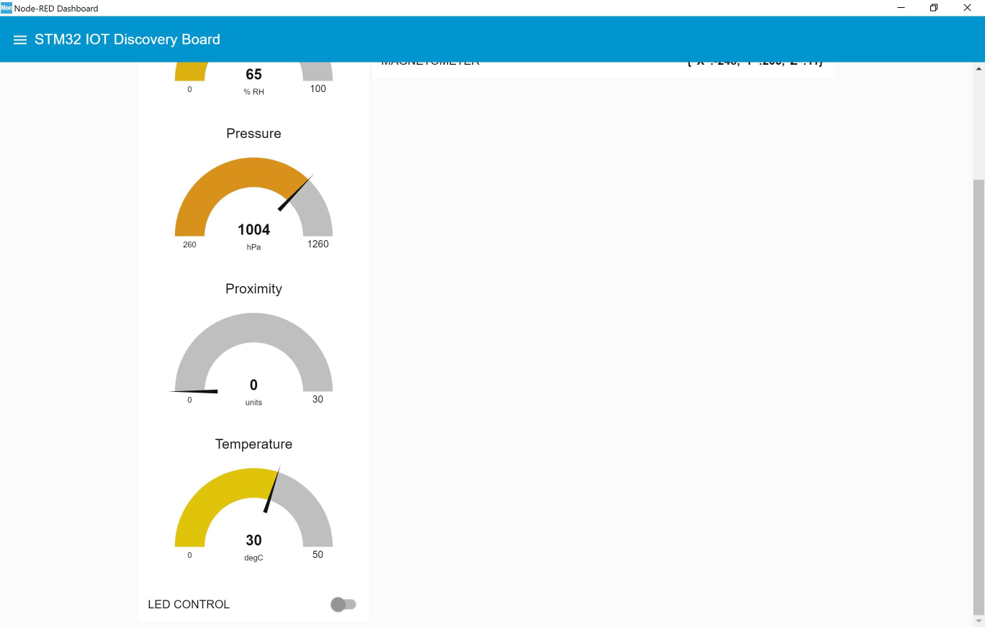
LAB 01-03 - Add a new temperature widget to the dashboard
Goals
In this lab, we will see how to add a new temperature widget to the dashboard
Overview
-
We will learn how add temperature in the dashboard
-
Fix the temperature in firmware
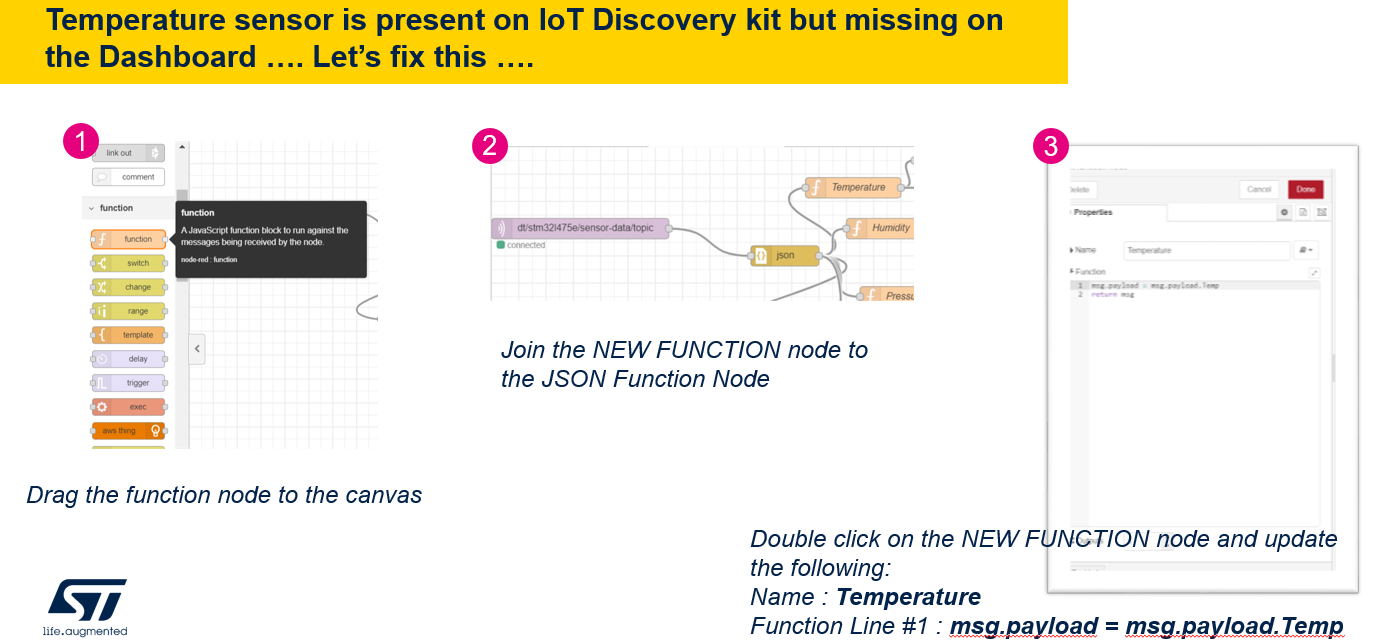
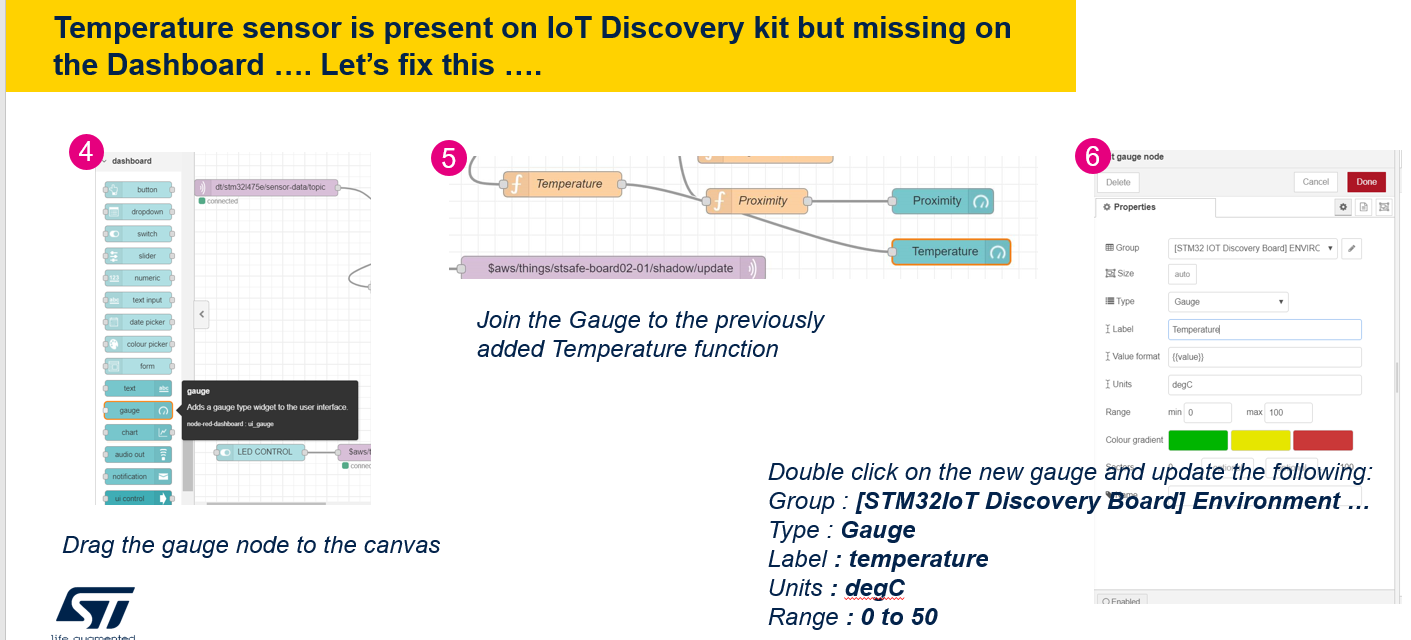
Adding Temperature to the Dashboard
Dashboard upgrade
Deploy the updated Dashboard
Click on Deploy to update the Dashboard description then on Dashboard to launch the Dashboard
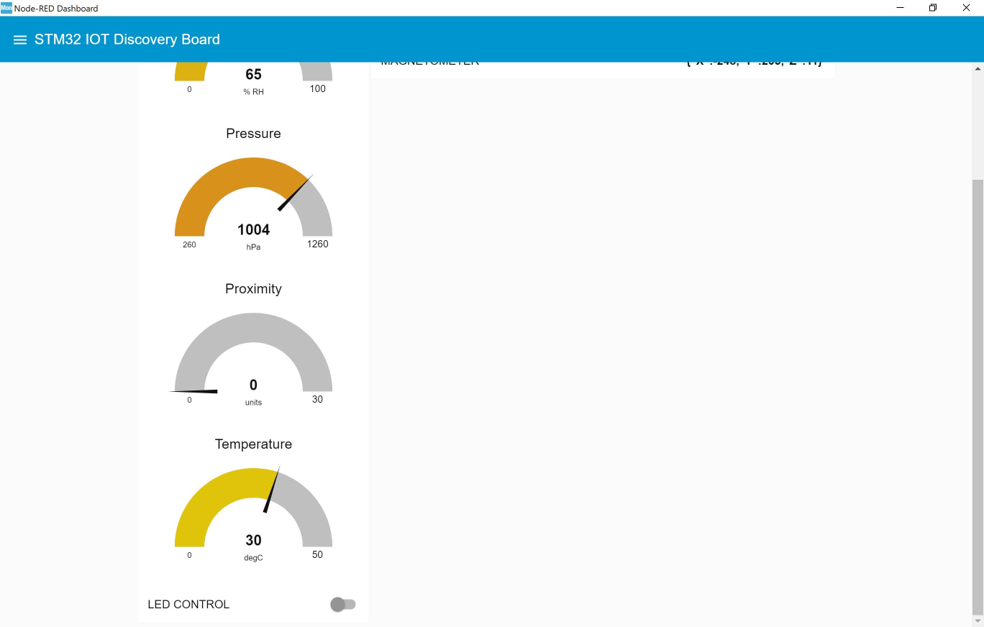
Unfortunately the temperature reported is equal to 0. There must be something wrong in the firmware. Let’s take a look at it and update it.
Updating Temperature capture in your firmware
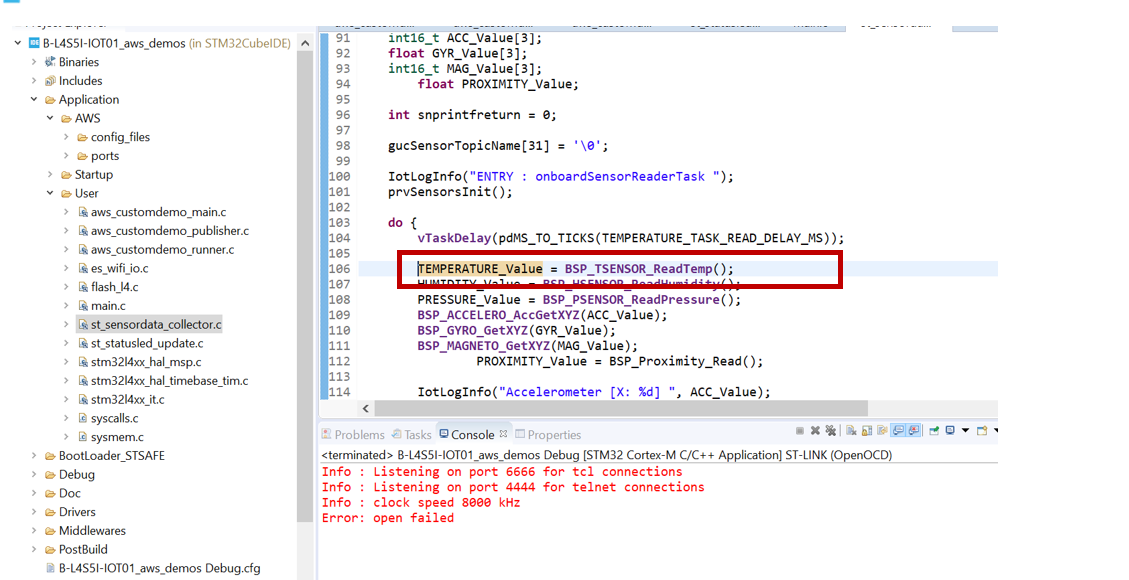
If for some reason Temperature displayed on your dashboard is equal to 0, check that Temperature is correctly captured in the firmware (st_sensordata_collector.c // line 106). You need to uncomment the line and recompile the demo project
Compile the Project
Steps necessary only if your c file was not correctly configured. Compile the aws_demos project by right click on the project then Clean Project and subsequently Build Project
Download the project onto the Device
Refer to the Lab00, if you are stuck in firmware download
Dashboard
Relaunch your Dashboard to see that Temperature is now correctly displayed